2013-11-03

Ricoh Aficio SPC410DN


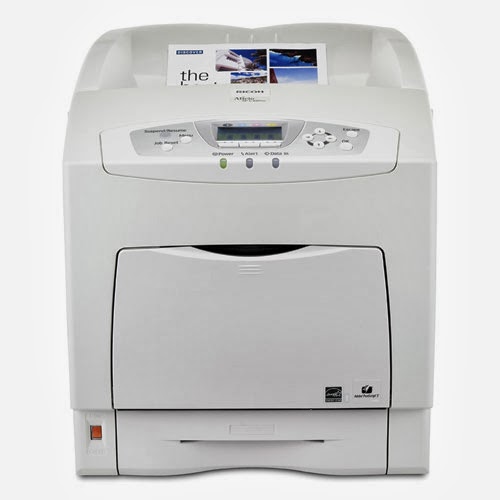
The Ricoh Aficio SP C410DN is a laser printer producing full-color documents. This fast print SP C410DN printer delivers 26 ppm in full-color and B&W. Saving time and paper is easy with the standard integrated duplexing; printing two-sided pages at nearly the same speed as single-sided. Keeping up with the demands of a highly productive department is the SPC410DNs’ monthly duty max of 150,000.


Printing on a variety of media from the universal paper tray and bypass tray is possible on the Ricoh Aficio SP C410DN. With a maximum 1,750 sheet paper capacity, the SP C410DN will need less frequent paper replenishment. Offering outstanding quality and color accuracy, the SP C410DN is a cost saving alternative to outsourcing print jobs.  


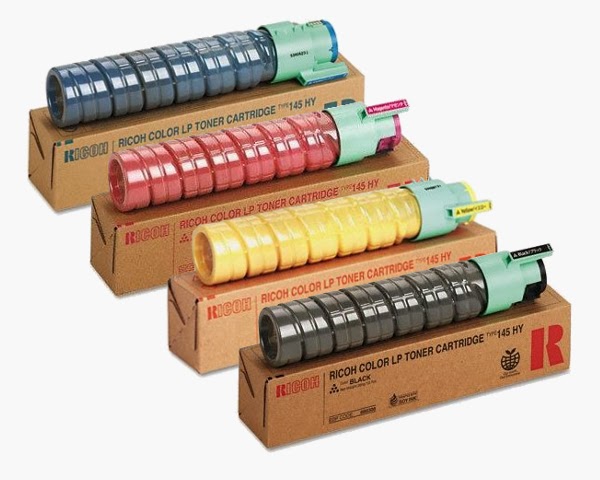
Genuine Ricoh Aficio SP C410DN high-yield toner cartridges come in black (Ricoh 888308), cyan (Ricoh 888311), magenta (Ricoh 888310), and yellow (Ricoh 888309). The high-yield AFICIO SPC410DN toner yields approximately 15,000 pages at 5 percent. 

Driver 

2013-06-04

HP LaserJet Enterprise P3015dn Printer


Printing specifications
Cable included?:Please purchase USB cable separately
Print speed, black (normal quality mode):Up to 42 ppm
Print speed footnote:Exact speed varies depending on the system configuration, software application, and document complexity.
First page out (black):As fast as 7.5 sec
Print resolution, black:Up to 1200 x 1200 dpi
Print technology:Laser
Monthly duty cycle:Up to 100,000 pages
Footnote for duty cycle:Duty cycle is defined as the maximum number of pages per month of imaged output. This value provides a comparison of product robustness in relation to other HP LaserJet or HP Color LaserJet devices, and enables appropriate deployment of printers and MFPs to satisfy the demands of connected individuals or groups.
Recommended monthly print volume:1500 to 5000
Footnote for recommended monthly print volume:HP recommends that the number of printed pages per month be within the stated range for optimum device performance, based on factors including supplies replacement intervals and device life over an extended warranty period.
Memory, standard:128 MB
Memory, Maxium:640 MB
Processor speed:540 MHz
Print languages, standard:HP PCL 5e; HP PCL 6; HP postscript level 3 emulation; direct PDF (v 1.4) printing
Memory Slots:1 slot 144-pin DIMM
Hard disk:


DRIVER
Click  Here 
Optional, HP High-Performance Secure EIO Hard Disk (EIO Hard Drive)


2013-04-25

Download Canon Pixma MP150 Driver

- File name : mp150win111ea13.exe
- File Size : 15.13 MB
- Version : Ver. 1.11
- Release Date : 10/20/09

Compatibility and System Requirements :

- Windows 8
- Windows 8 (x64)
- Windows 7
- Windows 7 (x64)
- Windows Vista
- Windows Vista (x64)
- Windows XP

How to Install the Driver :
Downloading drivers:

Almost all drivers you download are going to be a single file if the file is not an executable file it is almost definitely a compressed file that contains all the driver files. In order to install the driver you will first need to uncompress the file.
When extracting or uncompressing the drivers make sure to remember where you place the folder containing the drivers as you will need to point Windows to this folder when installing the drivers. We usually recommend users install the driver files in a folder on their desktop as it's an easy place to remember and locate.
Finally, the single file or the files extracted from the compressed file can be deleted after you have finished installing the drivers.

Executable

Many computer and hardware manufacturers today are pre-packaging their drivers into executable files or have the drivers installed through the setup file, which means double-clicking the setup file or the file you download should install the drivers to the computer for you.
Note: Many developers may package their drivers in a compressed file, which means before looking for the setup file you may need to uncompress the downloaded file. Information about doing this was explained above. If after uncompressing the file it still does not contain an executable file, setup file, or does not install your hardware device continue with the below recommendations.
Finally, if you were successful in installing your drivers make sure to rebo ot the computer after the drivers have been installed.

Using the have disk option
Often computer manufacturers and hardware manufacturers will also place the drivers on the CD, diskette, or download for Windows to find and use during its hardware detection. Below are steps on how to install drivers for a new device and upgrade a devices driver for this setup.

Installing a new device
  1. Open Windows Device Manager.
  2. In the Device Manager make sure the device you're attempting to install is not already listed from past install attempts. If the device is found highlight it and remove it from Device Manager to prevent any conflicts during the install.
  3. Once Device Manager looks ok reboot the computer.
  4. As the computer is rebooting an install new hardware wizard should appear if Windows detects the new hardware using this wizard you should be able to point Windows to the folder containing your drivers either on the CD, diskette, or the folder containing the files you downloaded.
If Windows does not detect any new hardware open Control Panel and double-click the Add hardware icon to run the hardware detection wizard. During the steps you will have an option to tell Windows you have a disk containing the drivers for your new hardware device, at this point Windows to the directory containing the drivers for your device.

Once drivers have been installed reboot.

Upgrading drivers for pre-existing device
  1. Open Windows Device Manager.
  2. In the Device Manager locate the device you wish to update the drivers for.
  3. Right-click the device and click Properties.
  4. In the Properties window click the Driver tab.
  5. Click the Update Driver button.
  6. In the Hardware Update Wizard point Windows to the location of the updated drivers on your hard drive
Once drivers have been installed reboot.

Install through the .inf file

Finally, if the above recommendati ons do not work the installation instructions for drivers and hardware devices are always contained in a .inf file that is located within the drivers.
Locate the .inf for your version of Windows, right-click that file and choose the option for install. Note this is a very raw form of installing a drivers and it is important that you make sure you're installing the correct .inf file and not a .inf file for another device or for a different version of Windows. Additional information and tips about locating the drivers was explained earlier in the general driver tips section.
Once you have right-clicked and installed the driver, reboot the computer.
One of the above three recommendations should have installed or updated the drivers successfully onto the computer. If you're still having difficulties getting the devic e to install it's possible you're not encountering a hardware issue and not an issue with the drivers. Refer to the troubleshooting steps for your hardware device for additional help and information.
 

Link Download Driver : Canon Pixma MP150 Driver
Source direct link Printer Driver Download


2013-04-18

Canon PIXMA MP230

GENERAL SPECIFICATIONS

Main FunctionsPrint, Copy, Scan
Other FunctionsQuality photos
What's in the boxAll-In-One printer, 2 FINE cartridges, Power cord, Setup guide, Software and User’s manual CD

PRINTER SPECIFICATIONS

Print ResolutionUp to 4800¹ x 1200 dpi
Print EngineInkjet FINE print head technology
4-colour system with min. 2pl ink droplet size
2 FINE Cartridges with ChromaLife100+
Mono Document Print SpeedESAT: Approx. 7.0 ipm¹
Colour Document Print SpeedESAT: Approx. 4.8 ipm¹
Photo Print SpeedBordered 10x15cm : Approx. 40 seconds¹
Borderless PrintingNot available
Two Sided PrintingManual operation
Other Print FeaturesFit-to-Page print, Scaled print, Multiple page per sheet print, Booklet print, Poster print, Collate¹

SCANNER SPECIFICATIONS

Scanner TypeFlatbed, CIS colour scanner
Scanner Resolution - OpticalUp to 600 x 1200 dpi¹
A4 Scan SpeedApprox. 14 seconds¹
Colour Scanning DepthFlatbed scan 48bit input / 24bit output (RGB each 16bit/8bit)
Halftone/GreyscaleFlatbed scan 16bit input / 8bit output
CompatibilityTWAIN / WIA
Effective Scanning WidthA4/LTR (216x297mm)
Text Recognition - OCRYes (My Image Garden software)
Scan Methods & EnhancementsDocument Scan (PDF, Compact PDF, JPEG, TIFF, PNG), Photo Scan (JPEG, TIFF, PNG), Auto Scan Mode, PDF file creation with optional password security, Text recognition (OCR), Scan and Stitch, Scan to Cloud, Scan to e-mail

COPIER SPECIFICATIONS

Colour DocumentsFCOT: Approx. 30 seconds¹
sESAT: Approx. 1.8 ipm¹
Multiple Copymax. 20 copies
Copy functions & enhancementsDocument copying (colour or mono)

SOFTWARE

Included SoftwareMP Driver including Scanning Utility
My Image Garden 
Full HD Movie Print¹ 
Quick Menu
Easy-WebPrint EX (download)²
Supported Operating SystemsWindows 8 (32 and 64bit)
Windows RT
Windows 7 (32 and 64bit)
Windows Vista (32 and 64bit)
Windows XP (32bit)
Mac OS X 10.5.8 - 10.8
Windows System RequirementsWindows 7: 1GHz or faster CPU, 1GB RAM (32bit) / 2GB RAM (64bit)
Windows Vista SP1 or SP2: 1GHz or faster CPU, 512MB RAM
Windows XP SP3: 300MHz or faster CPU, 128MB RAM
Browser: Internet Explorer 6 or higher 
CD-ROM Drive
Display: 800 x 600 or better
Mac System RequirementsMac OS X v10.7: Intel Core2Duo (or higher) CPU, 1GB RAM
Mac OS X v10.6: Intel CPU, 1GB RAM
Mac OS X v10.5.8: Intel CPU, 512MB RAM
Browser: Safari 3 or higher
CD-ROM Drive
Display: XGA 1024 x 768 or better

2013-03-25

Are you thinking of buying a new printer Do you find confused in choosing the right printer for you?

With us you will find some useful advices when buying a new printer
First, if you are printing your documents in small amounts you have  some choices

HP Deskjet Ink Advantage 2515 All-in-One Printer


Printing specifications
Print speed black (draft, A4)Up to 20 ppm
Print speed colour (draft, A4)Up to 16 ppm
Print speed black (ISO, laser comparable)Up to 8 ppm
Print speed footnoteEither after first page or after first set of ISO test pages. For details see: http://www.hp.com/go/printerclaims
Duty cycle (monthly, A4)Up to 1000 pages
Recommended monthly page volume300 to 400
Print technologyHP Thermal Inkjet
Print quality black (best)Up to 600 dpi
Print quality color (best)Up to 4800 x 1200 optimized dpi from 1200 dpi input data (when printing from a computer on photo paper)


HP Deskjet Ink Advantage 5525 e-All-in-One Printer


Printing specifications
Print speed black (draft, A4)Up to 23 ppm
Print speed colour (draft, A4)Up to 22 ppm
Print speed black (ISO, laser comparable)Up to 11 ppm
Print speed colour (draft, 10x15 photo)As fast as 19 sec
Print speed footnote[ 2 ]Either after first page or after first set of ISO test pages. For details see: http://www.hp.com/go/printerclaims
Duty cycle (monthly, A4)Up to 1000 pages [3]
Duty cycle note[ 3 ]Duty cycle is defined as the maximum number of pages per month of imaged output. This value provides a comparison of product robustness in relation to other HP LaserJet or HP Color LaserJet devices, and enables appropriate deployment of printers and MFPs to satisfy the demands of connected individuals or groups.
Recommended monthly page volume300 to 400
Print technologyHP Thermal Inkjet
Print quality black (best)Up to 1200 x 600 rendered dpi (when printing from a computer)
Print quality color (best)Up to 4800 x 1200 optimized dpi color (when printing from a computer on selected HP photo papers and 1200 input dpi)


Samsung ML-2165W Printer Driver


Quick 21 ppm Print Speeds
Print speeds of up to 21 ppm and first print out time of less than 8.5 seconds means you’ll spend more time printing and less time waiting.

Compact and Quiet
The compact ML-2165W has a footprint of just 13.0" W x 8.5" D x 7.0" H. It’ll fit comfortably on a corner of your desk or bookshelf. And at sound levels of less than 50dBA,you'll hardly hear it.

Wireless Printing
Wireless printing means you can place the compact ML-2165W anywhere in your office, without worrying about running cables to it. It also makes it simple to share your printer with multiple computers.


samsung scx 3405 


Push the Button, Save on Print Costs
Optimize your printing in one simple step with Samsung’s one-touch Eco Button. You can save on printing expenses when you quickly switch to Eco Mode and conserve toner, paper and energy.

Optimize Your Printing with Easy Eco Driver
With Samsung’s Easy Eco Driver, you can edit your document before printing and adjust quality, color and other settings such as removing unnecessary text, images or other elements. Say goodbye to wasted printouts and discover more economically-efficient printing.

Simple and Efficient Printer Management Made Easy
Discover simplified print management with Easy Printer Manager. This software allows you to quickly set up your device and monitor status. Never worry about unexpectedly running out of toner again. The Easy Printer Manager can notify you when toner as low, and even let you toner directly from the driver.

But if you are printing documents in large quantities or you're an engineer or designer, you need a specialized 
printer


HP Officejet Pro 8600 Plus e-All-in-One Printer series - N911 (CM750A)


Printing specifications
Print Speed Black (ISO, laser comparable)Up to 20 ppm
Print speed color (ISO, laser comparable)Up to 16 ppm
Print speed black (draft, letter)Up to 35 ppm
Print speed color (draft, letter)Up to 35 ppm
Print speed, black (normal quality mode)Up to 20 ppm
Print speed, color (normal quality mode)Up to 16 ppm
Print speed footnoteEither after first page or after first set of ISO test pages. For details see http://www.hp.com/go/printerclaims
Page yield footnoteAverage based on ISO/IEC 24711 or HP testing methodology and continuous printing. Actual yield varies considerably based on content of printed pages and other factors. Some ink from included cartridge is used to start up the printer. For details see http://www.hp.com/go/learnaboutsupplies
First page out (black)As fast as 13 sec
First page out (color)As fast as 14 sec
Monthly duty cycleUp to 25,000 pages
Recommended monthly print volume250 to 1250 pages (print); 150 to 700 (scan) pages
Footnote for recommended monthly print volumeHP recommends that the number of pages per month of imaged output be within the stated range for optimum device performance, based on factors including supplies replacement intervals and device life over an extended warranty period.
Print technologyHP Thermal Inkjet
Print resolution, blackUp to 1200 x 600 dpi
Print resolution, colorUp to 4800 x 1200 optimized dpi on HP Advanced Photo paper, 1200 x 1200 input dpi
Ink cartridges4 (1 each black, cyan, magenta, yellow)


HP Business Inkjet 2800 Printer series


Specifications
Print speed black (draft, A4)Up to 24 ppm
Print speed colour (draft, A4)Up to 21 ppm
Print quality black (best)Up to 1200 x 600 dpi
Print quality color (best)Up to 4800 x 1200 dpi
Duty cycle (monthly, A4)Up to 12,000 pages
DisplayNone
Number of print cartridges4 individual high capacity inks
Processor speed256 MHz
Memory, standard96 MB 
Print languagesHP PCL 5c, HP PCL 6, HP Postscript Level 3 Emulation
Paper handling
Paper handling input, standard150-sheet input tray, straight through paper path
Paper handling output, standard100-sheet output tray
Duplex printingAutomatic (optional)
Envelope input capacityUp to 22
Media sizes supportedA3+ (305 x 457 mm), A3 (297 x 420 mm), A4 (210 x 297 mm), A5 (148 x 210 mm), A6 (105 x 148 mm), B4 (250 x 353 mm), B5 (176 x 250 mm), B6 (125 x 176 mm), C4 (229 x 324 mm), C5 (162 x 229 mm), C6 (114 x 162 mm), DL (110 x 220 mm)
Media sizes, custom90 x 146 to 330 x 483 mm
Media typesCopier, bond, recycled, multipurpose, premium inkjet, premium inkjet heavyweight, premium transparency, premium photo paper, photo paper, professional brochure (matt and glossy), cards, envelopes and banner
Media weight, recommended60 to 136 g/m2


2013-02-05

Ricoh Aficio SP 4100N Mono Laser Printer

Ricoh Aficio SP 4100N Mono Laser Printer

In departmental office environments one of the key requirements is print speed and as printer makers know this it’s one of the main features determining price. As the throughput speed increases the price goes up steeply. Ricoh’s Aficio SP 4100N is a large workgroup or small departmental mono laser with a claimed speed of 31ppm.

The printer has a fairly conventional layout with a large, 500-sheet paper tray at the bottom and a further, 100-sheet multipurpose tray which unclips and folds down from the front panel above. You have to know just where to press it, though, as the click-open, click-closed catch doesn’t respond unless you press directly over it.
  The printer’s control panel is remarkably easy to use, as its eight buttons are well labelled in English, rather than relying on sometimes obscure icons and the two-line LCD display is completely horizontal and has a good backlight.

The printer comes with USB and 10/100 Ethernet as standard interfaces and you can add Gigabit networking and Wi-Fi as options. It's a bit surprising that duplex printing isn't included as standard on a machine at this price, but a duplexer is an option, along with two more 500-sheet paper trays, an envelope feeder, a hard drive and extra memory.

A single-piece drum and toner cartridge slides in from the front, once the front panel has been folded down. You shouldn't have to do this often, though, as the standard capacity of the cartridge is 15,000 pages. The maintenance kit, which is needed every 90,000 pages, is the only other consumable.
Software installation is reasonably straightforward, though choosing Quick Install only sets up the PCL 6 driver and the Adobe Postscript Level 3 installation is more fiddly, requiring you to assign a port manually. Since Postscript and PDF support are two important features of the printer, you'd think the driver installation would be included in the Quick Install Wizard.

The driver itself includes support for up to 16 pages per sheet, watermarks and user code entry, so only those with valid authority can print to the machine. There's no facility for walk-up printing from a USB stick, though, which is becoming an increasingly common feature.

Ricoh Aficio SP 4100N Mono Laser Printer - Ricoh Aficio SP 4100N Mono Laser Printer

Ricoh rates the Aficio SP 4100N at 31ppm, which is a very respectable speed for a mid-range business laser. In our tests we saw our five-page text print complete in 18 seconds and the five-page text and graphics print in 15 seconds. This gives a top speed for small documents of around 20ppm, though this excludes a five second wake-up time, if the printer is in Energy Save Mode.
Increasing the print run to 20 pages gives a time of 48 seconds, or 25ppm, so the printer gets quite close to the manufacturer’s specified speed. Printing our photo sample took just 10 seconds, but the quality of the print, even at the machine's maximum resolution of 1200 x 600dpi, wasn't good.

A lot of the greyscale detail was lost, with many of the darker tones veering to black and obvious micro-banding showing in areas of sky. There was also a paler, vertical band through the image and the machine's ability to reproduce photos is called into question.
 
Business graphics also suffered from the micro-banding and some greyscale tones again reproduced too darkly. Straight black text was fine, with clean characters and smooth curves and diagonals, but if a £400 mono laser printer couldn't produce good black text, it really would have problems.
Ricoh doesn't quote noise level in its spec sheet, or another useful parameter like duty cycle, but we measured it at peaks of 62dBA, which is quite loud, but no worse than many office photo copiers.

The two consumables for the Aficio SP 4100N are the drum and toner cartridge and the maintenance kit. Neither is cheap, but both have high capacities, giving a cost per page of 1.99p, including 0.7p for plain paper. This print cost is slightly on the high side, around 0.2p per sheet more than competitors we’ve tested recently.

The high capacities of both the cartridge and maintenance kit mean service costs should be low, but in this price bracket, the difference between replacing consumables every 8,000 or every 15,000 pages aren’t deal breakers.


Verdict
There are plus points in the make-up of Ricoh’s Aficio SP 4100N, like its respectable speed, built-in Adobe PostScript and PDF interpreters and the high capacity of its consumables. However, the poor print quality, for anything other than black text, ranks against this and the printer’s not particularly cheap or feature rich. Functions such as walk-up printing can add a lot to the value for a printer being shared in a workgroup or department and when you can get them for the same price as this Ricoh machine, it moves it down the shortlist
 .

Ricoh Aficio SP 4100N Mono Laser Printer - Feature Table
/94/d71774/71c5/8663-ft.gif